The dashboard, first login
By the end of this page, you’ll be logged into the dashboard, looking at your server’s page, ready to run the Guided Setup wizard.
1. Log in
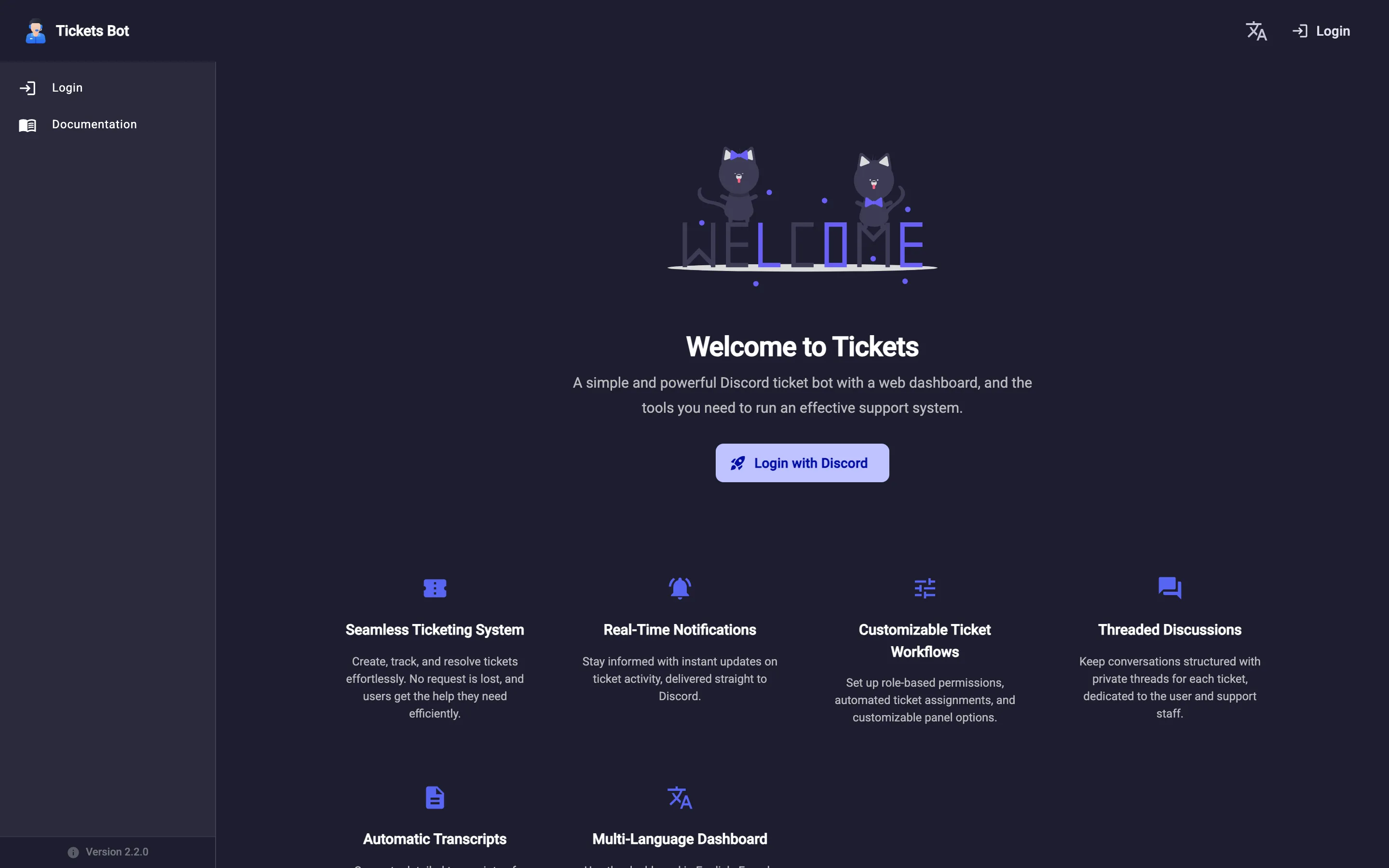
Section titled “1. Log in”Go to the dashboard and click Login with Discord. You’ll be sent through Discord’s own OAuth screen and back - there’s no separate account or password to create.
2. Find your server
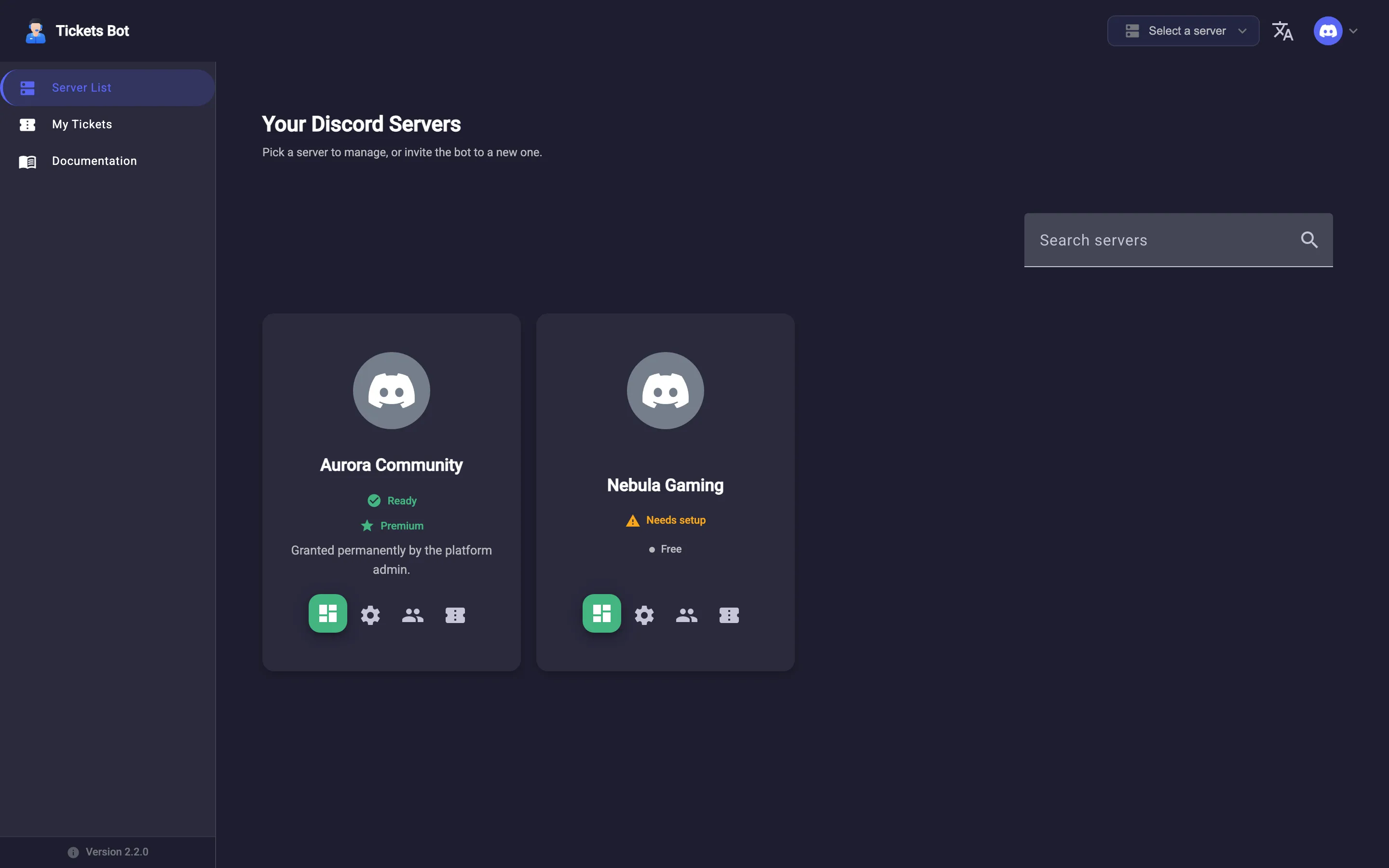
Section titled “2. Find your server”After logging in you land on Your Discord Servers - every server where you have Discord’s Manage Server permission shows up here automatically (if a server you expect isn’t listed, that’s almost always why - see the FAQ). Each server is shown as a card:
- If the bot is already a member, the card is tagged Ready (a green check) once setup is complete, or Needs setup (a warning badge) if it isn’t yet, with quick icon links to that server’s Dashboard, Settings, Teams, and Tickets pages.
- If the bot isn’t a member yet, the card shows an Invite Bot button instead.
If you have a lot of servers, you may briefly see “Still finding more of your servers…” while the list finishes loading.
3. Open a server’s dashboard
Section titled “3. Open a server’s dashboard”Click a Ready or Needs setup card to open that server’s dashboard. The sidebar splits into three sections for that server:
- Dashboard - Home (an activity overview) and Settings
- Tickets - Ticket Panels, Multi-Panels, and Tickets
- Management - Staff Teams and Blacklist
If the server isn’t fully configured yet, a setup checklist card appears at the top of its dashboard Home page, showing how many of the three setup steps (server settings, a support team, a ticket panel) are done, with a shortcut into each one and into the Guided Setup wizard covered next. It disappears (with a dismissible “all set up” banner) once every step is complete.
Dashboard language
Section titled “Dashboard language”The dashboard itself is available in English, French, Spanish, and Chinese (Simplified) - open My Profile from the sidebar and pick a language from the dropdown; the whole interface switches immediately, no reload needed. This only changes the dashboard’s own UI text; it doesn’t translate anything posted to Discord itself (ticket panels, embeds, bot messages stay in whatever language you write them in).
Continue to the Guided Setup wizard.