
Claiming, closing & auto-close
By the end of this page, you’ll understand the claiming settings under Server Settings, and every way a ticket can end up closed.
Claiming
Section titled “Claiming”Under Server Settings > Ticket Claiming Settings, three toggles control claiming for the whole server:
- Enable Ticket Claiming - lets support members assign a ticket to themselves.
- Allow Support Team to View Claimed Tickets - whether teammates can still see a ticket once someone else has claimed it.
- Allow Support Team to Reply in Claimed Tickets - whether teammates can still reply to a ticket once someone else has claimed it.
With claiming enabled, a staff member claims an unclaimed ticket from its row in the Tickets list (the flag/claim action), a button on the ticket thread itself, or the /claim slash command run inside the thread. Only members of a support team assigned to that ticket’s panel can claim it.
Closing
Section titled “Closing”A ticket can be closed by:
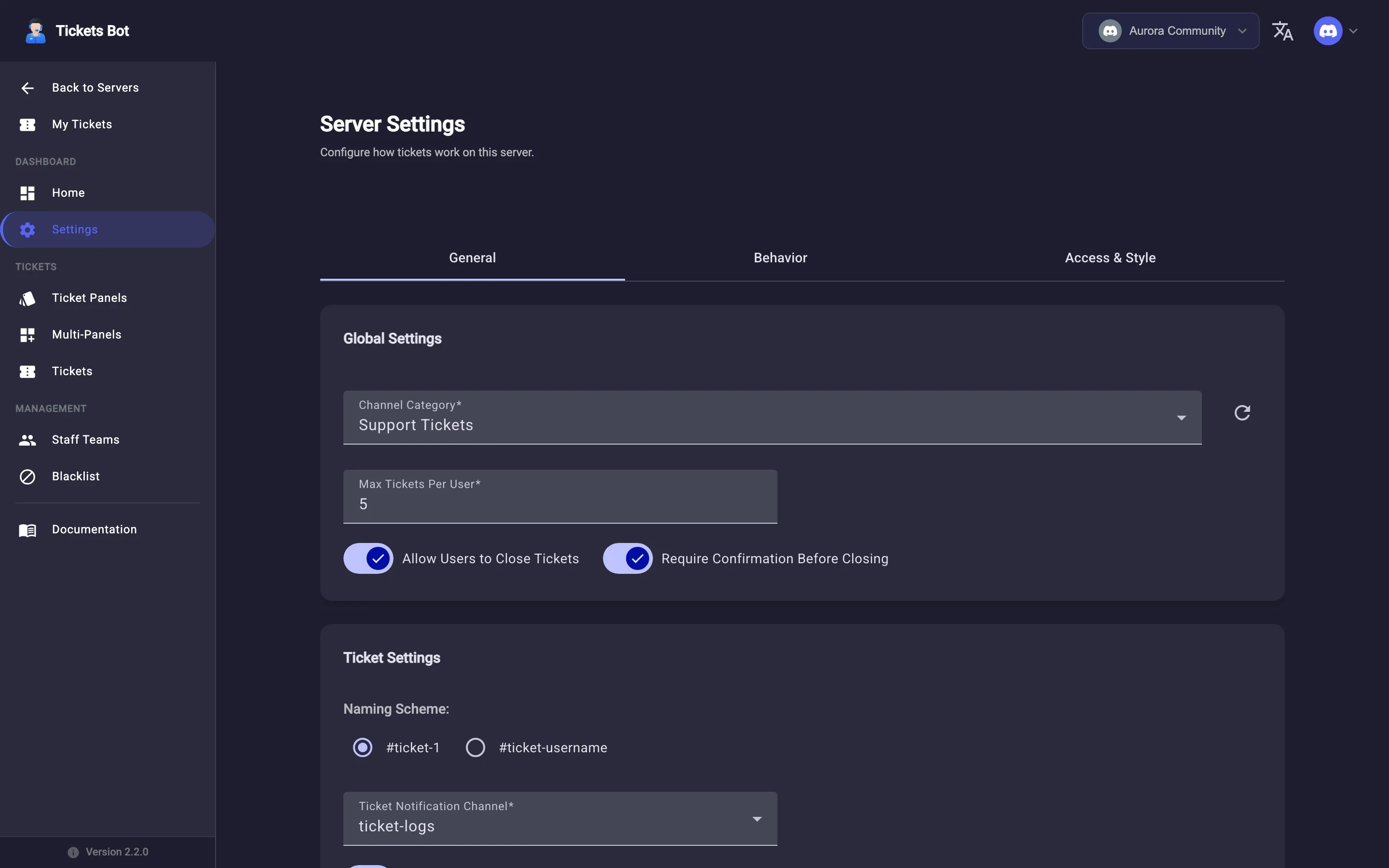
- The person who opened it, if Allow Users to Close Tickets is on (under Server Settings > Global Settings).
- Any member of the assigned support team.
- The
/closeslash command, run inside the ticket thread. - A Close ticket button on the dashboard’s ticket view, or on the thread itself.
If Require Confirmation Before Closing is on, closing prompts for confirmation first rather than closing immediately. Every close path - button, command, or dashboard - goes through the same flow: a transcript is generated (if enabled, see Transcripts), a closing notification/DM is sent, and the thread is locked and archived.
Auto-close when the opener leaves
Section titled “Auto-close when the opener leaves”If the member who opened a ticket leaves its thread (or the server), the ticket closes automatically, through that same transcript/notification flow - you don’t need to close it by hand just because the original member is gone.
See how the resulting transcript works in Transcripts, or see every ticket for your server at once in Managing tickets.