
Ticket panels
By the end of this page, you’ll know what a ticket panel is made of and how to create, send, and edit one from Ticket Panels in your server’s dashboard sidebar.
A panel is a single message posted in one of your channels with a button members click to open a ticket. You can have several panels for different purposes (e.g. “General Support” in one channel, “Report a Bug” in another) - each is independent, with its own settings.
Creating a panel
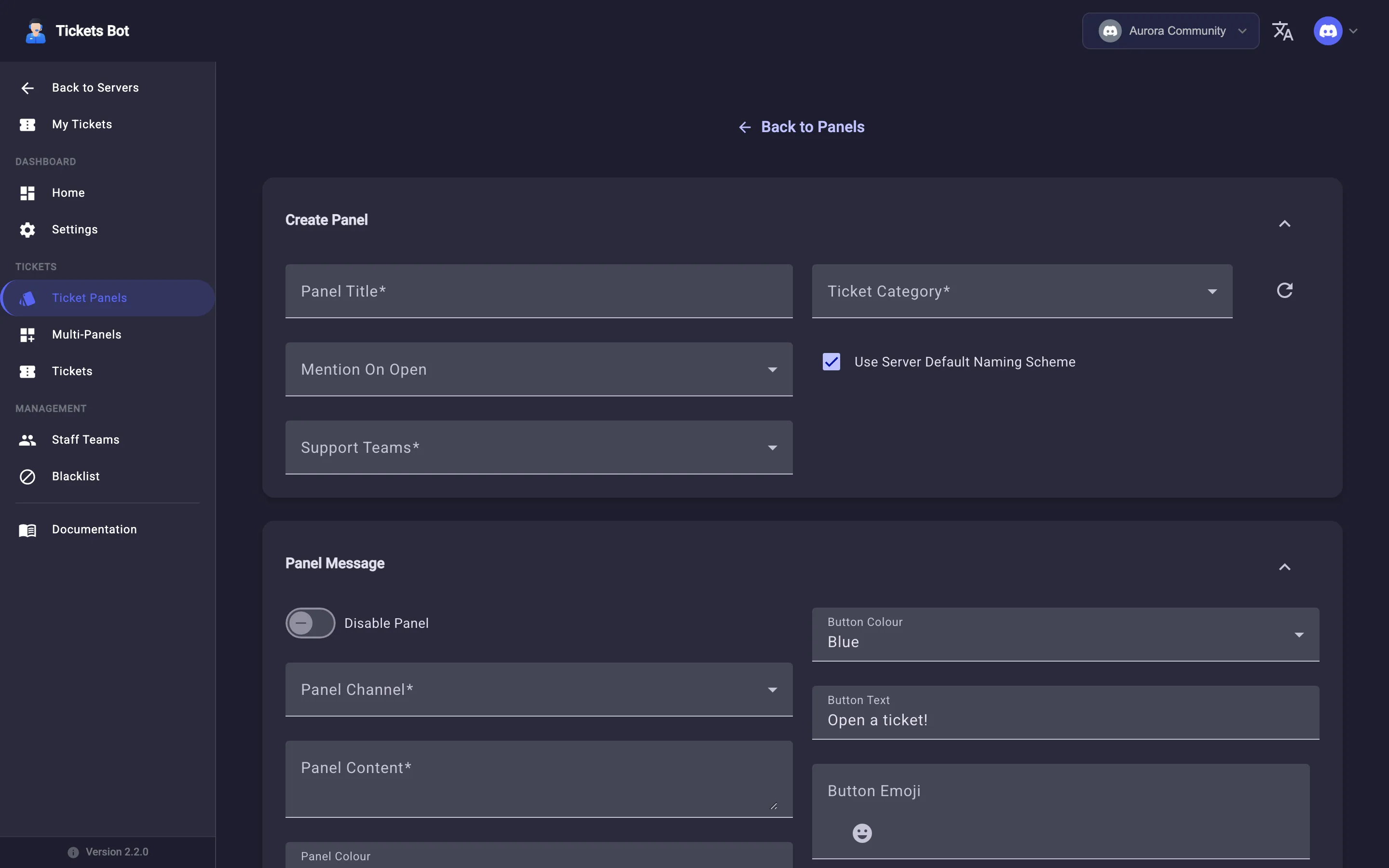
Section titled “Creating a panel”From Ticket Panels, click Create Panel. The form has four collapsible sections:
Ticket Properties
Section titled “Ticket Properties”- Panel Title - an internal label for the panel (shown in the dashboard’s panel list, not necessarily the message itself).
- Mention On Open - roles automatically @mentioned when a new ticket opens from this panel.
- Support Teams - which staff team(s) can see and respond to tickets from this panel. You need at least one team created first - the form links you to Staff Teams if none exist yet.
- Ticket Category - which Discord channel category new ticket channels/threads are created under (with a refresh button if you just created a new category in Discord and it hasn’t shown up yet).
- Use Server Default Naming Scheme - uncheck to give this specific panel its own ticket-naming scheme instead of inheriting your server’s default.
Panel Message
Section titled “Panel Message”The actual message posted to Discord: Disable Panel (keep it saved but not live), Panel Channel, Panel Content, Panel Colour, Button Colour (blue/grey/green/red), Button Text, and Button Emoji (with a built-in emoji picker).
Welcome Message
Section titled “Welcome Message”An optional message sent inside the new ticket thread as soon as it’s created - its own title, an optional title URL, an embed colour, and a description (up to 4096 characters).
Access Control
Section titled “Access Control”Rules for who’s allowed to use this panel, evaluated top to bottom - add a role and toggle it Allow or leave it un-toggled to explicitly block that role, then reorder rules with the up/down arrows.
Sending and resending
Section titled “Sending and resending”Creating a panel doesn’t post it to Discord by itself. Once you’re happy with it, use Send Panel on the Ticket Panels list to actually post the message. If you edit a panel that’s already been sent, use Resend Panel to push the changes to the live message.
Panel quota
Section titled “Panel quota”Each server has a maximum number of panels it can create, shown as Quota: X / Y at the top of the Ticket Panels page. The free-tier and premium ceilings are covered in Premium.
Editing and deleting
Section titled “Editing and deleting”Use Edit Panel to change any field above, or Delete Panel to remove a panel entirely (this doesn’t delete tickets already opened through it).
If you want to combine several panels behind one message instead of posting each separately, see Multi-panels.