
Staff teams
By the end of this page, you’ll be able to create a support team and control exactly who’s on it.
A team is a group of members and/or roles who can see and respond to tickets from whichever ticket panels are assigned to them. Add individual members by searching for them, or add a whole Discord role so that anyone holding it automatically gets access - a team can mix both. One panel can also be assigned to more than one team.
Creating a team
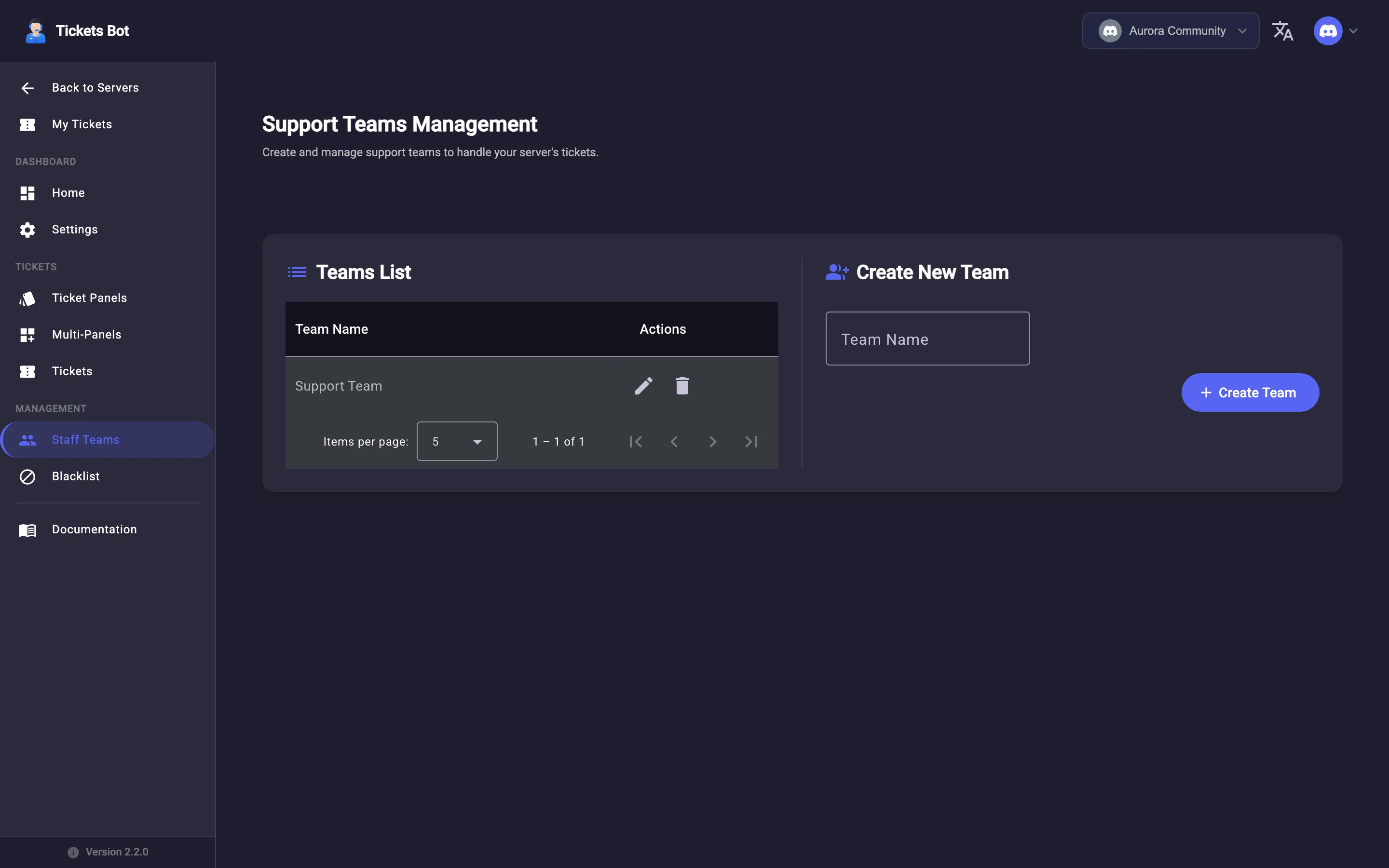
Section titled “Creating a team”From Staff Teams in the sidebar, type a name (e.g. “Senior Support”) under Create New Team and click Create Team. It appears in the Teams List on the left.
Managing a team’s members and roles
Section titled “Managing a team’s members and roles”Click a team to open it. Two columns appear:
- Members - search for a Discord member by name and click Add Member.
- Roles - pick a role from the dropdown and click Add Role.
Either column’s table lets you remove an entry. Click Back to Teams to return to the list.
What team membership actually controls
Section titled “What team membership actually controls”Being on a team assigned to a panel is what makes someone “support staff” for tickets opened through it - it’s what the /claim, /close, and /remove-user slash commands check, what lets someone see a ticket’s dashboard entry as staff rather than just the person who opened it, and (combined with your server’s claiming settings) who can reply once a ticket is claimed. It’s a separate concept from being a Discord server admin - see Admin & Permissions for how the two relate.
Team members and the web dashboard
Section titled “Team members and the web dashboard”By default, a team member who isn’t also a Discord server admin can only work tickets from inside Discord (via /claim, /close, replying in the thread, etc.) - they can’t log into the web dashboard at all.
If your server turns on Team Dashboard Access (Settings page - see Admin & Permissions), that changes: team members get a scoped Tickets view on the dashboard, limited to whichever panels their team supports. They still can’t see Settings, other teams’ tickets, Staff Teams management, or anything else admin-only. This is off by default - turning it on doesn’t change anything about how /claim//close//remove-user work in Discord, it just adds a web option for people already on a team.
See how teams get put to work in Claiming, closing & auto-close.