
Guided Setup wizard
By the end of this page, your server will have its core settings configured, a support team, and one ticket panel actually posted in a channel - the minimum for members to be able to open tickets.
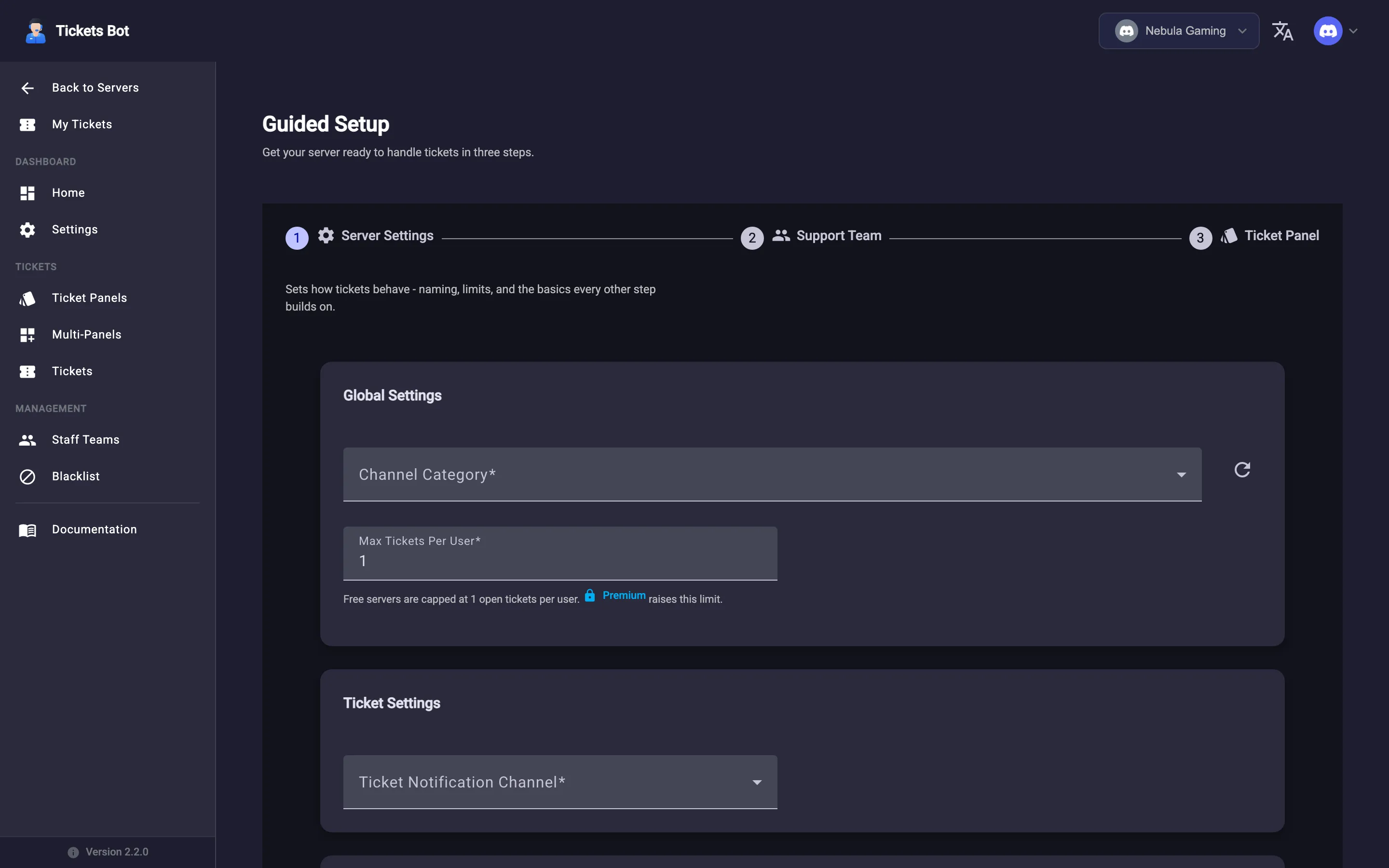
Guided Setup is a linear, three-step wizard reachable from your server’s setup checklist (see the previous page) or directly at that server’s /setup dashboard URL. It chains together the same Settings, Teams, and Ticket Panel forms documented later in these docs - it doesn’t do anything those pages can’t - it just walks you through the essential fields for each in one place, hiding the fields that aren’t essential for a first-time setup, and auto-advances to the next step as soon as one is complete.
The three steps
Section titled “The three steps”- Server Settings - the channel category new tickets are created under, and the essentials for how tickets behave on your server.
- Support Team - create at least one team and decide who’s on it (individual members, whole roles, or both). A panel can’t be created until at least one team exists.
- Ticket Panel - the message members will click to open a ticket. Unlike creating a panel from its own page, the wizard sends the panel to Discord for you automatically once you finish this step - you don’t need a separate “Send” click.
After the wizard
Section titled “After the wizard”Your server now has a working ticket system: members can click the panel’s button to open a ticket, and your support team can see and reply to it. The wizard doesn’t disappear afterward - every field it touched stays editable from that page’s own full form:
- Ticket panels and the fields the wizard hid (button colour/emoji, access control, welcome message, and more)
- Staff teams to add more teams or adjust membership
- Server Settings for claiming rules, transcripts, and notification channels
Prefer to configure things one at a time?
Section titled “Prefer to configure things one at a time?”Guided Setup is a faster on-ramp, not the only way in - Settings, Staff Teams, and Ticket Panels are each their own full page in the sidebar too, and you can skip the wizard entirely and use those directly.
Learn how ticket panels work in more depth, or jump to Slash Commands if you just want to know what members can do once a ticket is open.